


 VDJ Home
 Downloads
 License VDJ 9
 Support / How-To
 What's New?
How-To: Virtual DJ Studio 9
Let's take a look at the Search Index Options window. This should be the first thing you configure when setting up Virtual DJ Studio so that your music is searchable: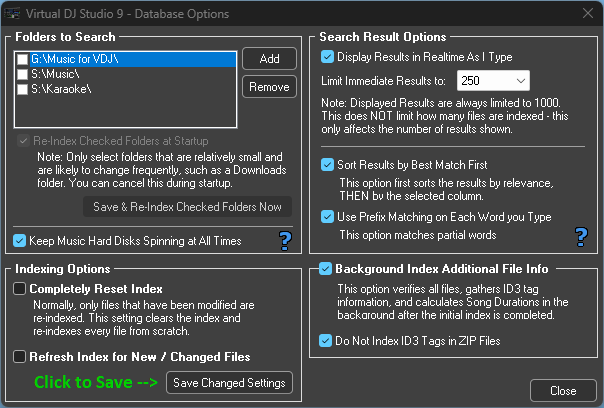
This dialog may appear intimidating at first, so we'll break it down by each section, going clock-wise.
Adding Music, Video and Karaoke Folders
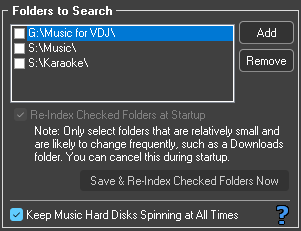
Clicking the Add button allows you to select a Folder or Drive. You might be tempted to add your entire drive, and this is okay IF that drive contains ONLY Music, Video and Karaoke files. If it is a general purpose drive containing other file types, it is recommended that you add the specific FOLDERS instead, one at a time.
VDJ Will allow you to add an entire Media drive, but it will NOT allow you to add your entire C:\ drive (or whichever drive contains your Windows installation).
Reindex Checked Folders at Startup
If you check the box next to any of the folders, and select this check-box, VDJ will scan those folders every time VDJ starts.Use this with caution - only select folders that change frequently (such as a Downloads folder), and that do not contain a lot of files. This could cause VDJ to take longer than usual to launch.
Keep Music Hard Disks Spinning at All Times
This option tells VDJ to try and prevent your Hard Disk drives from spinning down, or going into Power-Save mode. This only matters on actual hard disk drives, not SSD or other solid-state types of media.Buf it you do have a large, external, physical spinning-disk drive attached, this feature can prevent the disk spinning down, causing an interruption when you need that drive the most!
Note that VDJ loads MP3 and ZIP files 100% into RAM on load, so a spun-down disk won't delay playback of these files; but Video files are read from disk as needed.
Search Result Options
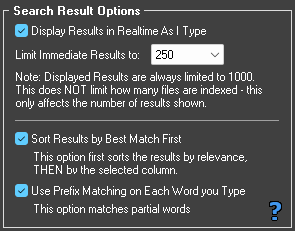
Here you can limit the Displayed Results. This does NOT limit how many files are searched, only how many are displayed in the Results list, after any sorting has been applied.
Keeping this number low keeps the search lightening-fast, and if you keep the next option enabled, the most relevant results will be at the top after just a few key strokes.
Sort Results by Best Match First
Each Search Result is ranked based on how often the typed keyword (or partial word) appears in the file, as well as where it appears. Words in the Filename portion carry more weight than words appearing in the Path (folder names), and the closer to the beginning of the filename, the higher that result is ranked.If the rankings are equal, then the Column Sorting takes over to sort within those results.
Use Prefix Matching on Each Word you Type
This is optional but highly recommended. This allows you to just start typing a few letters, and results start showing up immediately.It is recommended to simply keep all three of these checked. Note that you can toggle the Best Match instantly in the Results Window, using the Sort by Relevance checkbox at the top.
See the Search Tab Page for more details on the Searching features.
Background Index
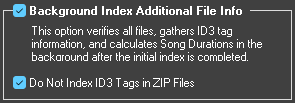
Background Index Additional File Info
This option runs a background thread after the primary Indexing is complete. This background thread does a few things to the files found during the primary Index:- Validates the File is Playable
- Determines the Duration
- Pulls in ID3 Tag information
This is especially important for ZIP files, where VDJ may index ZIP files that are not Karaoke files, rather, just random ZIP files in your Downloads folder.
If you use the MyDjSongbook Request App, this step is required.
While it may take a while to complete the first time on a large music collection, it is highly recommended that you allow this step to run. You can close VDJ, and it will resume where it left off on the next launch.
This runs as a low-priority thread, and does not interfere with your ability to use VDJ while this is happening in the background.
Do Not Index ID3 Tags in Zip Files
This one is recommended -- in order to properly index ID3 tags that are inside a ZIP file, VDJ has to unzip the first few kilobytes of the MP3 inside the ZIP. This adds a little bit more time, and can add up significantly on a large collection.Most CDG ZIP Karaoke tends to NOT use ID3 tags anyway, but if your collection DOES have valid, useful ID3 tag information, then you may wish to UNCHECK this box so that VDJ will go ahead and get that information.
Indexing Options
On the lower-left is where you choose what you want to do after adding your folders and setting your options: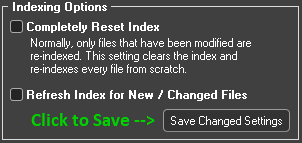
Completely Reset Index
This option will ERASE your entire database, and start from scratch, as though you were running VDJ for the first time.Use this option only if you experience corruption, or if instructed to do so by VDJ Support.
Refresh Index for New / Changed Files
Select this to have VDJ run through all of the files/folders looking for new, changed, or missing (deleted) files. This should be done after any re-organization of files, or after obtaining new files in your colletion.While it does a quick scan of ALL folders, it will only do the deeper Background index on files that have been modified, or are new.
Save Changed Settings
Clicking this saves your settings and closes this dialog. If either of the checkboxes are checked, or any major changes have been made, it will proceed to start the Indexing process as well.Next Steps
If you haven't already, Learn the Player Line Interface.Back to Main How-To Page